![Clevry_Logo_RGB_TSSC.png]](https://help.clevry.com/hs-fs/hubfs/Clevry/Logos/Clevry%20Logo%20Tagline/Clevry_Logo_RGB_TSSC.png?height=40&name=Clevry_Logo_RGB_TSSC.png)
jThis guide will walk through what you need to know so that you can connect Clevry to
Teamtailor and configure integration properly. You will also learn how to set up your Clevry
assessments for your jobs and view candidate results and reports in Teamtailor.
Authenticate and connect the integration
- The new client user should activate the Clevry 2.0 integration from the teamtailor Marketplace.
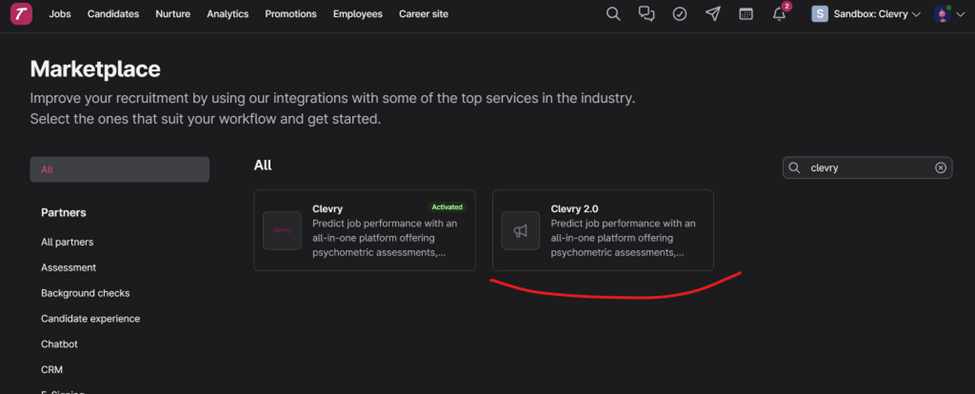
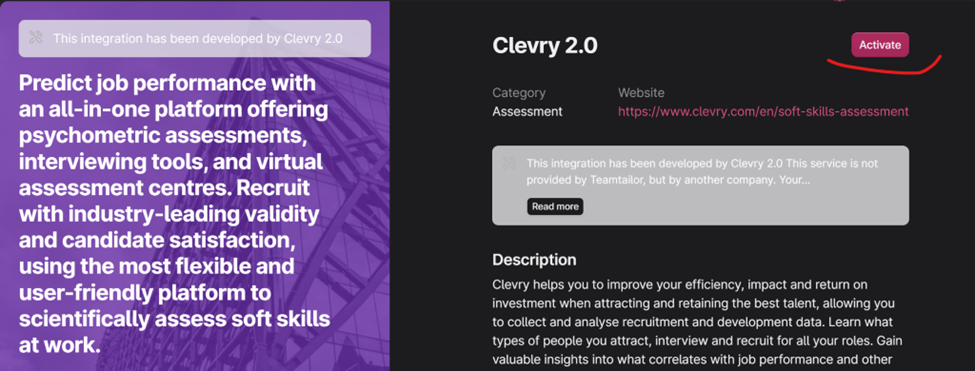
2. Clevry will provide an Auth ID (client-specific GUID) for the client to complete the integration (once the client has a Clevry account, we will generate this).
3. The client user enters the Auth ID in Teamtailor and clicks “Update”.
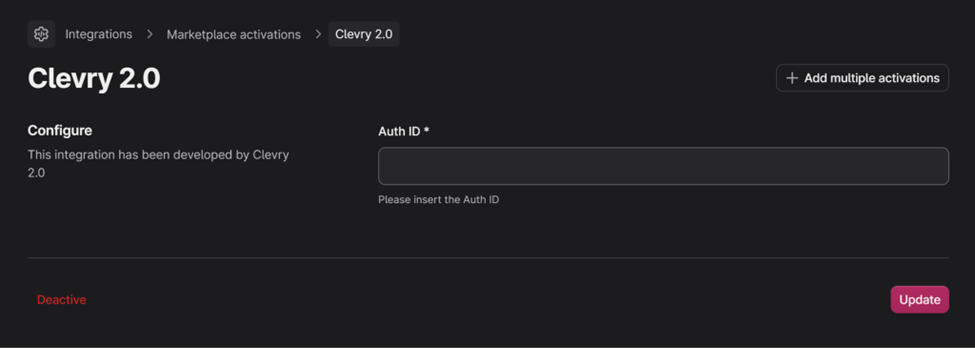
4. Once completed, the client user will be able to see Clevry 2.0 in the Triggers list.
Connect a Clevry Assessment to any Job in Teamtailor
- Create or edit a job teamtailor. Add the Trigger, choose Clevry 2
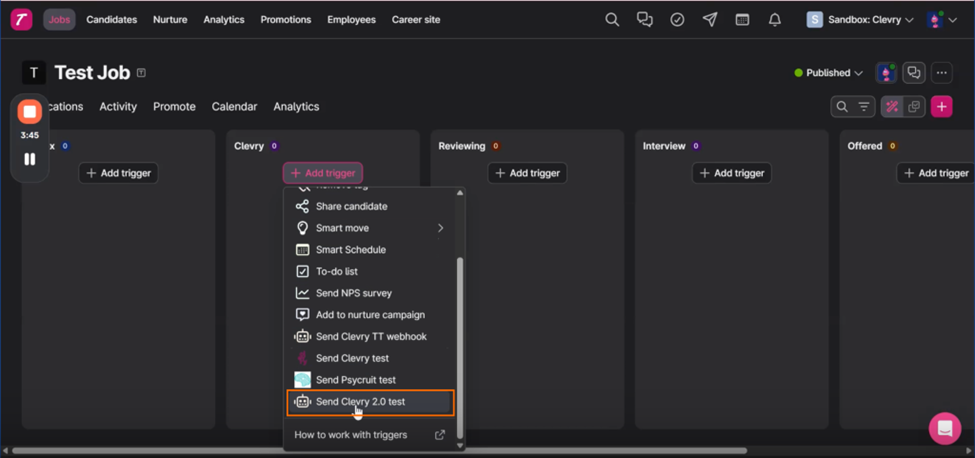
2. After selecting Clevry 2.0, choose the desired tests. Please note that tests must first be created on the Clevry side; once created, they will be displayed in Teamtailor
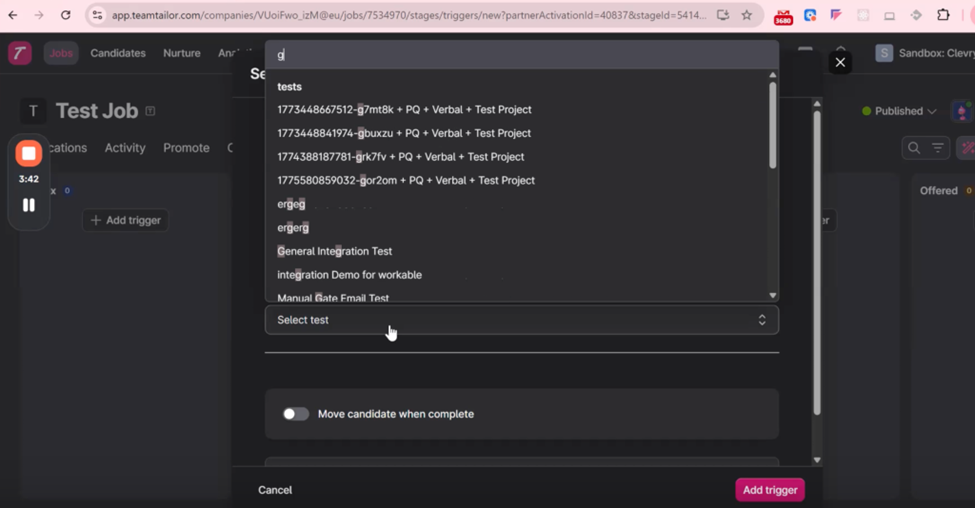
Review candidate details
Once the candidate is invited, you will see it here. Please refer to the screenshot below.
(Please ensure that candidates are invited via Teamtailor, as results will not be sent back if invitations are initiated from the Clevry side)
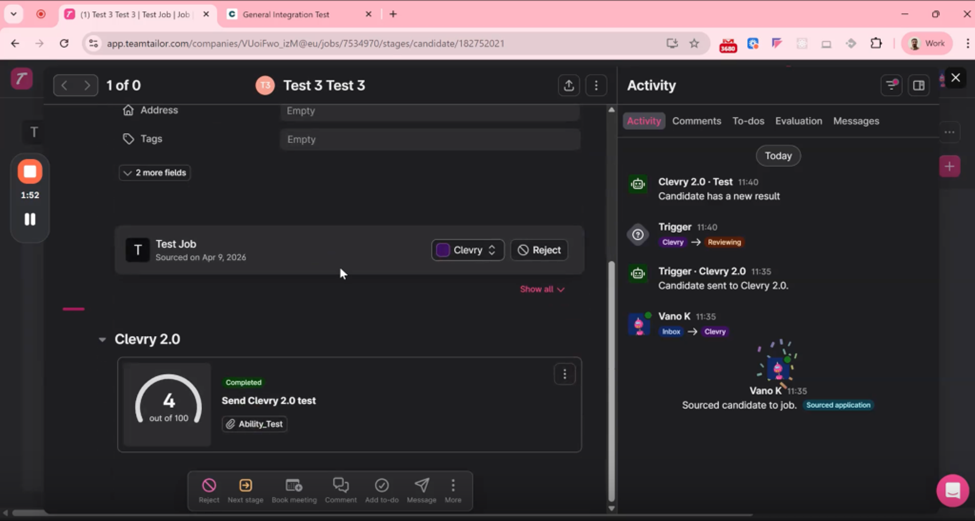
After the candidate completes the assessment, their scores will be available on the Candidate card.